Web Performance Optimization: 15 Techniques, Plus a Lighthouse Test of Our Own Site (Mobile LCP 1.9s to 11.8s Across Pages)
Introduction
Google's research established that as page load time increases from 1 second to 3 seconds, bounce rate increases by 32%. At 5 seconds, it jumps 90%. Amazon famously estimated that every 100ms of latency cost them 1% in revenue. These are not hypothetical numbers — they reflect real user behavior captured across billions of sessions.
Beyond user experience, Core Web Vitals are a confirmed Google ranking factor. A slow site costs you both users and organic search visibility simultaneously.
The good news: most performance wins come from a small set of techniques. This guide organizes the 15 most impactful by category, starting with the changes that move the needle most.
Core Web Vitals: What You Are Optimizing For
Google's Core Web Vitals define three user-centric performance metrics. These are what Lighthouse, PageSpeed Insights, and Google Search Console measure and report.
| Metric | What It Measures | Good | Needs Work | Poor |
|---|---|---|---|---|
| LCP (Largest Contentful Paint) | How quickly the main content loads | ≤ 2.5s | 2.5–4.0s | > 4.0s |
| INP (Interaction to Next Paint) | Responsiveness to user interactions | ≤ 200ms | 200–500ms | > 500ms |
| CLS (Cumulative Layout Shift) | Visual stability (content jumping around) | ≤ 0.1 | 0.1–0.25 | > 0.25 |
INP replaced FID (First Input Delay) in March 2024. It measures the worst interaction latency across the full page visit, making it harder to game and more representative of real interactivity.
Image Optimization (The Biggest Wins)
Images account for 50–70% of total page weight on most websites. This is where the largest gains live.
Technique 1: Use Modern Image Formats
WebP delivers images roughly 25–30% smaller than JPEG at equivalent visual quality, and 30–40% smaller than PNG for photos. AVIF is even more aggressive — often 50% smaller than JPEG — though encoding is slower and browser support is slightly behind WebP.
<picture>
  <source srcset="hero.avif" type="image/avif">
  <source srcset="hero.webp" type="image/webp">
  <img src="hero.jpg" alt="Hero image">
</picture>
The <picture> element lets browsers select the best format they support, with JPEG as a universal fallback. WebP is now supported in all major browsers including Safari 14+.
Technique 2: Responsive Images with srcset and sizes
Serving a 1920px image to a 375px mobile screen wastes 5–10x the bandwidth needed.
<img
  src="hero-800.jpg"
  srcset="hero-400.jpg 400w,
          hero-800.jpg 800w,
          hero-1200.jpg 1200w,
          hero-1920.jpg 1920w"
  sizes="(max-width: 600px) 100vw,
         (max-width: 1200px) 80vw,
         1200px"
  alt="Hero image"
>
The browser uses sizes to understand the rendered width in CSS pixels, then selects the appropriate source from srcset based on the device pixel ratio. This requires generating multiple sizes of each image, which image CDNs (Cloudinary, Imgix) or build tools (Sharp, next/image) handle automatically.
Technique 3: Lazy Loading Below-the-Fold Images
<img src="article-photo.jpg" loading="lazy" alt="Article photo">
The loading="lazy" attribute defers image loading until the image approaches the viewport. It requires zero JavaScript and is supported in all modern browsers. Apply it to every image that is not visible in the initial viewport. Never apply it to your LCP image — that counterproductively delays the metric you are trying to improve.
Technique 4: Set Explicit Width and Height to Prevent CLS
<img src="photo.jpg" width="800" height="600" alt="Photo">
Without explicit dimensions, the browser cannot reserve space for the image before it loads, causing content below to jump down — a CLS violation. Setting width and height attributes lets the browser calculate the aspect ratio and reserve space immediately. CSS max-width: 100% still makes it responsive.
Resource Loading
Technique 5: Minify and Bundle CSS/JS
Minification strips whitespace, comments, and shortens variable names. A typical 100KB JavaScript file minifies to 40–50KB. Bundling reduces the number of HTTP requests. Every major build tool handles this: webpack, Vite, esbuild, Rollup, Parcel.
Verify your production build is actually minified by opening DevTools Sources and checking that scripts are not human-readable.
Technique 6: Code Splitting
Shipping your entire JavaScript bundle on every page loads code for features the current user may never trigger. Code splitting divides the bundle into chunks loaded on demand.
// Dynamic import — chunk loaded only when user triggers this feature
const { Chart } = await import('./chart-library.js');
React supports this via React.lazy() and Suspense. Next.js does route-based splitting automatically. Aim for initial JS bundle under 100KB (gzipped) for fast mobile load.
Technique 7: Preload Critical Resources
<!-- Preload the hero image (your LCP candidate) -->
<link rel="preload" href="hero.webp" as="image">

<!-- Preload a critical web font -->
<link rel="preload" href="/fonts/body.woff2" as="font" type="font/woff2" crossorigin>

<!-- DNS prefetch for third-party domains -->
<link rel="dns-prefetch" href="https://analytics.example.com">
preload tells the browser to fetch the resource immediately, at high priority, even if it is not yet in the HTML parser's queue. Use sparingly — preloading too many resources defeats the purpose by competing for bandwidth. Prioritize your LCP element and critical fonts.
Technique 8: Font Optimization
Web fonts are a common source of invisible latency. Two techniques matter most:
@font-face {
  font-family: 'MyFont';
  src: url('/fonts/myfont.woff2') format('woff2');
  font-display: swap; /* Show fallback font immediately, swap when loaded */
}
font-display: swap eliminates invisible text during font load (FOIT — Flash of Invisible Text), replacing it with a fallback font immediately. The swap happens when the custom font is ready.
Font subsetting — including only the characters you actually use — reduces font files dramatically. A full Latin + extended font might be 300KB; a subset for English-only content might be 20KB. Tools: pyftsubset, Google Fonts text= parameter.
Network Optimization
Technique 9: CDN for Static Assets
A Content Delivery Network serves static files from edge nodes physically close to users. A visitor in Tokyo loading assets from a server in Virginia experiences 150–200ms of raw latency before a single byte arrives. With a CDN, that drops to under 10ms from a nearby edge node.
All major cloud providers offer CDN services: Cloudflare (exceptional free tier), AWS CloudFront, Fastly, Akamai. Configure your build output, images, and fonts to be served through CDN.
Technique 10: HTTP/2 Multiplexing
HTTP/1.1 browsers open 6 parallel connections per domain. HTTP/2 sends all requests over a single connection simultaneously, eliminating head-of-line blocking. HTTP/2 is enabled at the server or CDN level — no application code changes required.
Verify: open Chrome DevTools → Network tab → right-click any request → add Protocol column. You should see h2 for HTTP/2.
Technique 11: Aggressive Cache Headers
Cache-Control: max-age=31536000, immutable
Fingerprinted assets (with content hash in filename like app.3f4a8b.js) can be cached indefinitely — if the content changes, the filename changes, busting the cache automatically. The immutable directive tells the browser not to revalidate even on hard refresh.
For HTML documents, use Cache-Control: no-cache (forces revalidation but still allows 304 Not Modified responses without retransferring the body).
Technique 12: Brotli Compression
Brotli is a compression algorithm developed by Google that outperforms gzip by 15–25% for text assets (HTML, CSS, JS). Enable it at the server or CDN level. NGINX example:
brotli on;
brotli_comp_level 6;
brotli_types text/html text/css application/javascript;
If your CDN is Cloudflare, Brotli is enabled automatically with zero configuration.
Runtime Performance
Technique 13: Avoid Layout Thrashing
Reading a DOM property like offsetHeight forces the browser to finish all pending style calculations. Alternating reads and writes in a loop causes "layout thrashing" — the browser recalculates layout dozens of times per second.
// Bad: causes layout thrashing
elements.forEach(el => {
  const height = el.offsetHeight; // forces layout
  el.style.height = height * 2 + 'px'; // triggers style change
});

// Good: batch reads, then batch writes
const heights = elements.map(el => el.offsetHeight); // one layout pass
elements.forEach((el, i) => {
  el.style.height = heights[i] * 2 + 'px'; // one style update pass
});
Technique 14: Virtual Scrolling for Long Lists
Rendering 10,000 DOM nodes simultaneously — a contact list, a log viewer, a data grid — creates significant memory pressure and paint cost. Virtual scrolling renders only the items currently visible in the viewport plus a small buffer, swapping nodes as the user scrolls.
Libraries: react-virtual (TanStack Virtual), react-window, @angular/cdk/virtual-scroll. Implementing from scratch is non-trivial; use a library.
Technique 15: Web Workers for CPU-Intensive Tasks
JavaScript runs on the main thread. Heavy computation (parsing large CSVs, image processing, encryption, compression) blocks the main thread and makes the UI unresponsive — directly harming INP.
// main.js
const worker = new Worker('./processor.worker.js');
worker.postMessage({ data: largeDataset });
worker.onmessage = ({ data: result }) => {
  updateUI(result);
};

// processor.worker.js
self.onmessage = ({ data: { data } }) => {
  const result = expensiveComputation(data); // runs off main thread
  self.postMessage(result);
};
Web Workers run on a separate thread with no access to the DOM. They communicate via message passing. Libraries like comlink make the API ergonomic.
Measurement Tools
| Tool | Access | Best For |
|---|---|---|
| Lighthouse | Chrome DevTools → Lighthouse tab | Complete audit, development iteration |
| PageSpeed Insights | pagespeed.web.dev | Real user data (CrUX) + lab data |
| WebPageTest | webpagetest.org | Detailed waterfall, multi-location testing |
| Chrome DevTools Performance tab | F12 → Performance | Profiling runtime jank and long tasks |
| Core Web Vitals report | Google Search Console | Real user data at scale across your site |
Run Lighthouse in an incognito window to avoid extension interference. Run PageSpeed Insights on your production URL for data that includes real user measurements from the Chrome User Experience Report (CrUX).
Hands-on test: 24 Lighthouse runs against 4 pages of this site
Background
Every technique above is sound, but the old title of this article promised a speed-up of 50%, and that number was never measured by me. This site is itself a Next.js app with all three page shapes (home, tool pages, article pages) and three third-party scripts (Google Tag Manager, AdSense, Baidu Analytics). So the question is simple: by Google's own yardstick, what does this site score right now, how many seconds is LCP, and which layer is slow? This section answers that, and the number in the title is now a measured one.
Analysis
Three things need to be measured separately:
- The score and the three metrics themselves. The Lighthouse performance score is a weighted mix of FCP, LCP, TBT, CLS and Speed Index. The mobile preset simulates a Moto G Power on slow 4G (4x CPU slowdown, 150ms RTT, 1.6Mbps); the desktop preset uses no CPU slowdown, 40ms RTT and 10Mbps. The gap between the two presets on the same page is the answer to "why optimize mobile separately".
- Which element is the LCP element. LCP is the render time of the largest content element. If that element is a server-rendered heading, the levers are TTFB and render-blocking resources. If it is a client-side node that only appears after hydration, the levers are JavaScript size and execution time.
- How much the third-party scripts cost. GTM, AdSense and Baidu Analytics are the classic "added and forgotten" items. Lighthouse has
--blocked-url-patterns, which measures "how much faster without them" without touching a line of code.
One more subtlety that is easy to miss: Lighthouse's default throttling method is simulate. It runs the page unthrottled, records a trace, and then uses the Lantern model to estimate what a slow device on a slow network would experience. The output is a model value, not a measurement. That distinction almost made me write the opposite conclusion in the comparison experiment below.
Approach and what I ruled out
- Test the production site, not a local dev server.
next devskips production optimizations, so bundle sizes and scores from it are meaningless, and I have no local standalone build identical to what is deployed. Production is the path users take. The price is that the numbers include the network from my machine to the Beijing host; TTFB is listed separately for that reason. - Use the Lighthouse 13.4.1 CLI via npx, not the DevTools panel. With 60-plus runs, only the CLI can write every run's full JSON to disk so a script can take medians instead of me copying numbers by hand. PageSpeed Insights was ruled out reluctantly: it runs on Google's machines and adds CrUX field data, which would have been a better control, but the anonymous endpoint had exhausted its daily quota (HTTP 429), and a token from the site's GA service account was rejected for insufficient scope (403). It is marked "not tested" below.
- 4 pages covering three shapes: the home page (tool card grid), the Markdown editor (heavy client component), the file converter (light client component) and the Chinese edition of this article (pure server-rendered article page). Mobile and desktop, 3 runs each, medians: 24 baseline runs.
- A real browser UA is required. The site's middleware blocks automation user agents such as
curl/andHeadlessChromewith a 403, and Lighthouse drives headless Chrome. The default settings turned out to pass (see Pitfalls for why), but every formal run passes a real Chrome UA through--emulatedUserAgentto be safe. - Two comparison experiments: ① block third-party scripts (GTM / GA / AdSense / DoubleClick / Baidu Analytics / reCAPTCHA), mobile, 4 pages × 3 runs; ② the same before/after with
--throttling-method=devtoolson the home page and the Markdown page, 3 runs each, to decide whether the simulated result can be trusted.
Procedure
One run looks like this (add --preset=desktop for desktop):
npx --yes lighthouse https://tools.cooconsbit.com/zh \
  --output=json --output-path=raw/home.mobile.1.json --quiet \
  --emulatedUserAgent="Mozilla/5.0 (Linux; Android 11; moto g power (2022)) AppleWebKit/537.36 (KHTML, like Gecko) Chrome/140.0.0.0 Mobile Safari/537.36" \
  --chrome-flags="--headless=new --no-first-run"
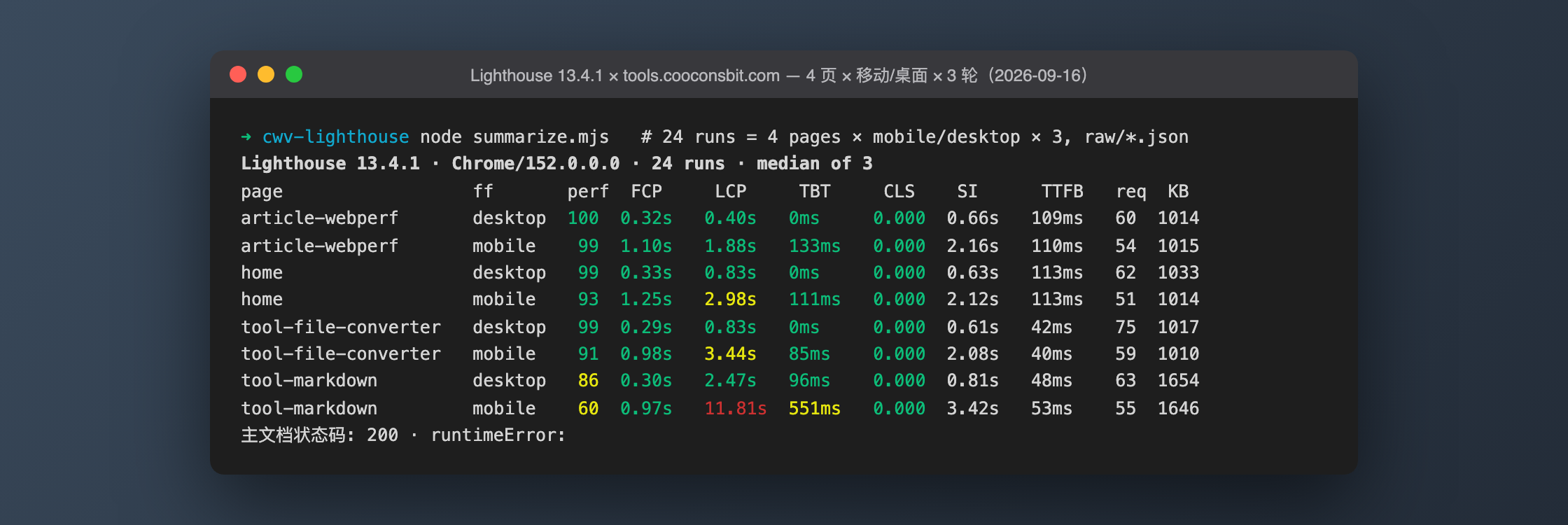
The 24 baseline runs took 611 seconds. For each run the script first checks that the main document's status code is 200 and runtimeError is empty, then reads the five metrics from audits and sums transfer bytes by resource type from network-requests, and finally takes the median of 3 runs per page and form factor:
The comparison runs add --blocked-url-patterns (one flag per domain):
npx --yes lighthouse https://tools.cooconsbit.com/zh --output=json ... \
  --blocked-url-patterns="*googletagmanager.com*" --blocked-url-patterns="*google-analytics.com*" \
  --blocked-url-patterns="*googlesyndication.com*" --blocked-url-patterns="*doubleclick.net*" \
  --blocked-url-patterns="*adtrafficquality.google*" --blocked-url-patterns="*hm.baidu.com*" \
  --blocked-url-patterns="*google.com/recaptcha*" --blocked-url-patterns="*gstatic.com*"
The real-throttling group adds --throttling-method=devtools with everything else unchanged.
Results
Baseline: 4 pages × 2 form factors, median of 3 runs
| Page | Form factor | Perf score | FCP | LCP | TBT | CLS | Speed Index | TTFB | Requests | Transfer |
|---|---|---|---|---|---|---|---|---|---|---|
| Article page (zh edition of this post) | Desktop | 100 | 0.32s | 0.40s | 0ms | 0 | 0.66s | 109ms | 60 | 1014KB |
| Article page | Mobile | 99 | 1.10s | 1.88s | 133ms | 0 | 2.16s | 110ms | 54 | 1015KB |
| Home | Desktop | 99 | 0.33s | 0.83s | 0ms | 0 | 0.63s | 113ms | 62 | 1033KB |
| Home | Mobile | 93 | 1.25s | 2.98s | 111ms | 0 | 2.12s | 113ms | 51 | 1014KB |
| File converter | Desktop | 99 | 0.29s | 0.83s | 0ms | 0 | 0.61s | 42ms | 75 | 1017KB |
| File converter | Mobile | 91 | 0.98s | 3.44s | 85ms | 0 | 2.08s | 40ms | 59 | 1010KB |
| Markdown editor | Desktop | 86 | 0.30s | 2.47s | 96ms | 0 | 0.81s | 48ms | 63 | 1654KB |
| Markdown editor | Mobile | 60 | 0.97s | 11.81s | 551ms | 0 | 3.42s | 53ms | 55 | 1646KB |
Run-to-run noise is small: the home page on mobile scored 88 to 94 across 3 runs with LCP between 2.98s and 3.89s; the Markdown editor on mobile landed at 11.76s to 11.98s, firmly in the "Poor" band all three times. Accessibility is 96 to 97 (91 for the editor on mobile), SEO is 100, and Best Practices is 58 for all 8 combinations with the same three deductions each time: one deprecation warning, 3 third-party cookies, and entries in the DevTools Issues panel, all from the ad and analytics scripts.
Four things to read from the table:
- CLS is 0 everywhere and TTFB is 40 to 113ms. Layout stability and server response are not the problem. Image dimensions, fonts and SSR are already done on this site, so Techniques 4 and 8 have no headroom here.
- On the same site, mobile LCP differs by 6x: 1.88s on the article page (the LCP element is the server-rendered
<h1>, with only 93ms of render delay) versus 11.81s on the Markdown editor. On desktop those two pages are 0.40s and 2.47s. - The Markdown page is slow because of one chunk. Its first-party JavaScript is 20 files, 941KB transferred, 2856KB uncompressed. One file,
e39dd30a996a1574.js, is 497KB transferred and 1,478,867 bytes raw: the all-languages refractor syntax-highlighting bundle and the remark / rehype pipeline pulled in by@uiw/react-md-editor. A second 125KB chunk is html2canvas for the image export. The editor is loaded withdynamic(..., { ssr: false }), the LCP element is the editor container<div>, and its render delay is already 1879ms with no throttling on my machine; simulated 4x CPU slowdown plus slow 4G stretch that to 11.8s. This is exactly where Technique 5 (code splitting) should land on this site: load highlighting languages on demand, and fetch html2canvas only when the user clicks export. - On the home page and the file converter, the mobile LCP element is the text of the cookie consent banner. The selector is
body > div.fixed > div.mx-auto > p.text-sm, with node text "We use cookies to keep you signed in…" (in Chinese). Fetching the home page HTML with curl and searching for that class name gives 0 hits, because the banner component starts withvisibleset tofalseand returnsnulluntil auseEffectafter hydration has read localStorage. So the LCP time equals "JavaScript download + execution + hydration": under real throttling the home page paints FCP at 2.0s and fires DOMContentLoaded at 1.98s, but the batch of Low-priority JS chunks finishes downloading only at 4.3s, and LCP lands at 5.14s with a render delay of 4891ms. A 91-pixel-tall banner stole the home page's LCP from the server-rendered content. The fix is straightforward: server-render the banner and hide it with CSS, or make it smaller than the above-the-fold heading.
What the third-party scripts cost: before and after blocking (mobile, median of 3)
| Page | Perf score | LCP | TBT | Requests | Transfer |
|---|---|---|---|---|---|
| Article page | 99 → 99 | 1.88s → 2.16s | 133ms → 3ms | 54 → 38 | 1015KB → 410KB |
| Home | 93 → 83 | 2.98s → 4.61s | 111ms → 4ms | 51 → 35 | 1014KB → 411KB |
| File converter | 91 → 84 | 3.44s → 4.48s | 85ms → 16ms | 59 → 43 | 1010KB → 405KB |
| Markdown editor | 60 → 64 | 11.81s → 8.60s | 551ms → 446ms | 55 → 39 | 1646KB → 1047KB |
The three third parties add up to roughly 600KB per page: GTM 316KB, Google ads 220 to 245KB, adtrafficquality 22KB, Baidu Analytics 12KB. After blocking, TBT drops to near zero and transfer shrinks by 60%, both as expected. But LCP on the home page and the file converter got worse by 1 to 1.6 seconds, and the scores dropped 7 to 10 points. My first guess was that the LCP element had changed. The JSON says no: before and after, the LCP element is the same cookie text, and the unthrottled observed LCP on my machine moved only from 380ms to 476ms. What changed was Lantern's estimate.
So I re-ran the same comparison with devtools throttling:
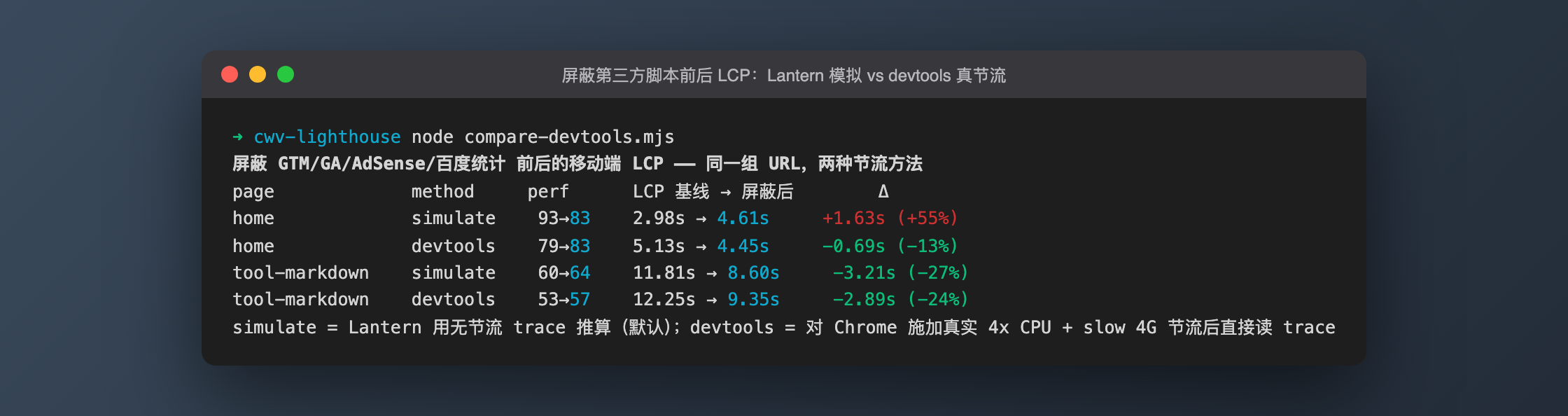
| Page | Throttling | Perf score | LCP baseline → blocked | Change |
|---|---|---|---|---|
| Home | simulate | 93 → 83 | 2.98s → 4.61s | +1.63s (+55%) |
| Home | devtools | 79 → 83 | 5.13s → 4.45s | −0.69s (−13%) |
| Markdown editor | simulate | 60 → 64 | 11.81s → 8.60s | −3.21s (−27%) |
| Markdown editor | devtools | 53 → 57 | 12.25s → 9.35s | −2.89s (−24%) |
Under real throttling the direction is right: the home page gets 13% faster, the Markdown page 24%, and home-page TBT goes from 56ms to 0. So the real cost of this site's third-party scripts is "10 to 30% of LCP and all of TBT", not the negative number the model produced. A side observation: the devtools home-page LCP is 5.13s versus 2.98s simulated, because real throttling adds a full 150ms round trip to every TLS handshake and every request, while Lantern's model is more optimistic about small requests. Absolute values from the two methods cannot be compared with each other; only before/after deltas within one method mean anything.
PSI / CrUX field data: not tested. The anonymous endpoint returned HTTP 429 and the service-account token returned 403. Every number in this section is lab data with no real-user samples.
Pitfalls
- Deltas from Lantern-simulated throttling are not experimental results. The default
--throttling-method=simulateoutputs model estimates. For a comparison that changes the shape of the request graph, such as blocking third-party scripts, the model gave the home page +55% LCP while real throttling measured −13%. Any before/after comparison should be re-checked with devtools throttling at least once; simulate is fine for single absolute scores and low-noise repeated measurements. - When a site blocks by UA, Lighthouse's defaults actually pass; only
--no-emulated-user-agentgets the 403. The tip I was given beforehand said the default UA contains HeadlessChrome and gets blocked. I tested 5 settings: default mobile emulation,--preset=desktop, and an explicit--emulatedUserAgentwith a real Chrome UA all got a 200 for the main document, because Lighthouse overrides the UA by default with a Moto G or Mac Chrome string (visible inconfigSettings.emulatedUserAgent). Only--emulatedUserAgent="curl/8.7.1"and--no-emulated-user-agentgot 403 withERRORED_DOCUMENT_REQUEST. Do not guess whether you were blocked; read thestatusCodeof the first entry innetwork-requestsin the JSON.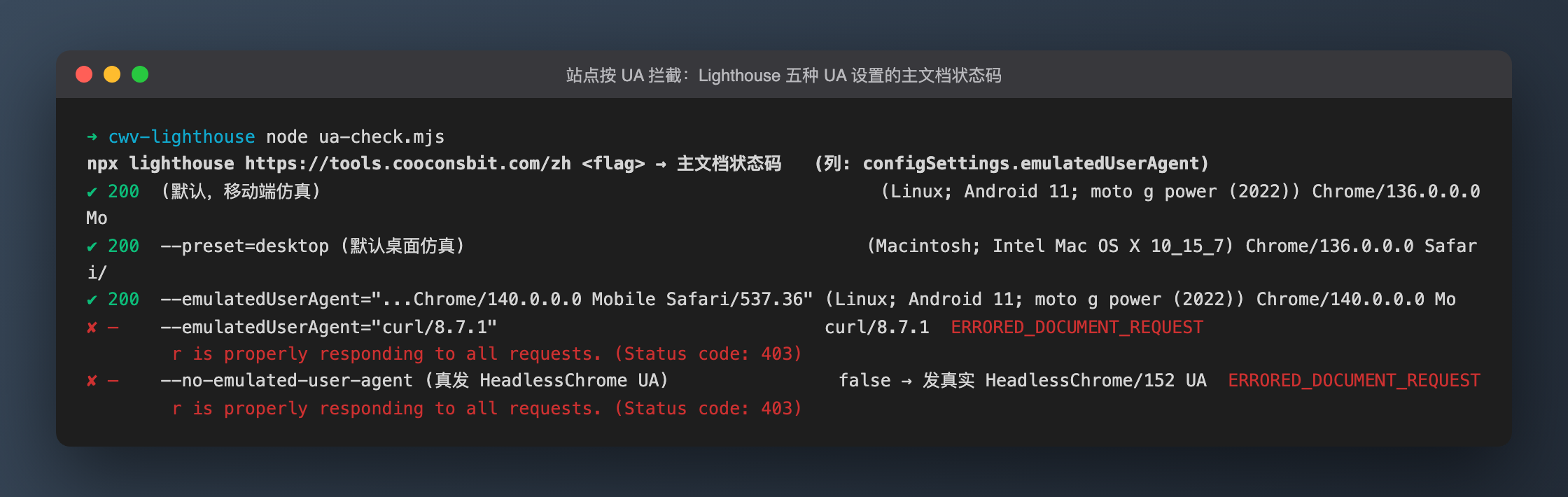
- Some runs of the same page finish in 12 seconds, others in 55. The difference is the GA
/g/collectrequest: my machine connects directly with no proxy, that request never returns, and Lighthouse waits for the 45-secondmaxWaitForLoadceiling before wrapping up. All 6 home-page runs hit this, 4 Markdown runs did, and the other pages, which never sent the request, finished in 7 to 12 seconds. The metrics are unaffected (FCP and LCP are long decided by then), but batch runs need to budget for the worst case. environment.networkUserAgentdoes not reflect--emulatedUserAgent. I passed Chrome/140 and the JSON field says Chrome/152 (the host Chrome version). That field records Lighthouse's default string; the value actually in effect is inconfigSettings.emulatedUserAgent. The curl-UA run's 403 proves the flag works.- Lighthouse 13 audit ids differ from older versions.
largest-contentful-paint-element,third-party-summaryandmainthread-work-breakdownare gone; the LCP element and its phases live inlcp-breakdown-insight, third parties inthird-parties-insight. RunObject.keys(lhr.audits)before writing a summary script instead of working from memory. - The PageSpeed Insights API is practically unusable without a key. Anonymous calls share one daily quota, already exhausted (429) that day; the GA service-account token does not help either (PSI only accepts API keys and returned 403 for insufficient scope). Real-user CrUX data requires creating a key in Google Cloud first.
- If you cannot find an element in the SSR HTML, do not assume it was server-rendered. For the cookie banner I first assumed "the text must be SSR, so the slow LCP is the font's fault"; the font audit was in fact a perfect score. Only after
curlfound 0 hits for the class name in the HTML did it click that the element is mounted after hydration. To decide which layer an LCP element belongs to, check whether it is in the raw HTML first.
The raw JSON (raw/, raw-blocked/, raw-devtools-*/, raw-noua/), the run scripts (run-lh.mjs / run-blocked.mjs / run-devtools.mjs) and the summary scripts (summarize.mjs / compare-devtools.mjs / ua-check.mjs) are all in the repository under tmp/2026-09-16-cwv-lighthouse/, and every number in the tables above can be traced back there.
FAQ
What is a good LCP score? Under 2.5 seconds for the 75th percentile of your users (meaning 75% of visits experience LCP under that threshold). Google scores pages as "Good," "Needs Improvement," or "Poor" — the Good threshold is the target. Focus first on your LCP element: it is almost always a hero image, a large heading, or a video thumbnail.
Do JavaScript frameworks hurt performance? They can, but it is usually implementation quality rather than the framework itself. React, Vue, Angular, and Svelte all have production sites with excellent Core Web Vitals. The risks specific to frameworks: large initial bundle size, client-side rendering delaying LCP, and hydration causing INP spikes. Server-side rendering or static generation eliminates the LCP delay. Techniques 5, 6, and 13 address the rest.
Should I prioritize mobile or desktop performance? Mobile. Google uses mobile-first indexing, meaning your mobile performance score is what affects search ranking. Mobile devices have slower CPUs, slower networks, and less memory than desktops. Achieving good Core Web Vitals on mobile typically ensures excellent desktop performance automatically. Test on a real mid-range Android device (or Lighthouse's mobile simulation) rather than your development machine.
Conclusion
Performance optimization has a natural order of returns: image optimization delivers disproportionate gains for most sites because images dominate page weight. Network optimization (CDN, caching, HTTP/2) is often free with modern infrastructure. Runtime optimization matters most for interactive applications.
Start by running Lighthouse on your current production site. Look at the opportunities section — it prioritizes recommendations by estimated time savings and is almost always correct about where to focus first. Address the biggest opportunities, deploy, measure again, and repeat.
The 15 techniques in this guide are not exotic; they are industry standard. Most can be implemented in a day. But measure before you pick one: on this very site, mobile LCP ranges from 1.88s to 11.81s across pages, the slow page is slow because of one 1.48MB highlighting bundle, and the fast page's LCP element turned out to be the cookie banner. Neither of those is something you would guess from a checklist.